Managing Video Quality During Network Congestion
Last updated: April 23, 2025
LiveKit provides automatic video quality management during network congestion to help maintain session stability and audio quality. When enabled, the system will automatically pause video streams during periods of significant network congestion while maintaining audio communication.
Enabling the Feature
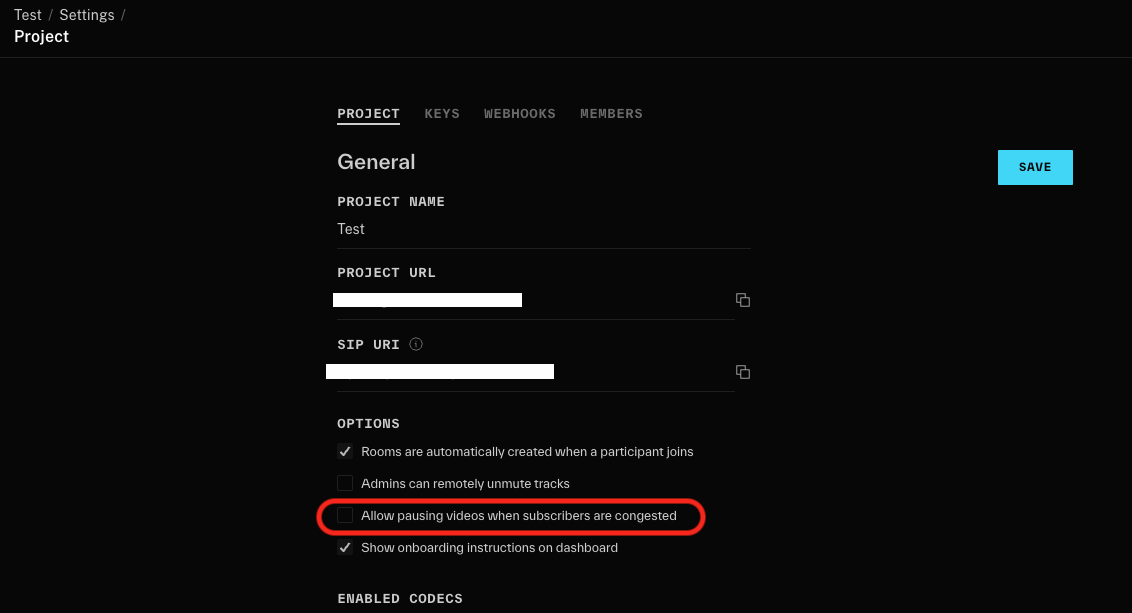
In your project settings, enable the "Allow pausing videos when subscribers are congested" option. When enabled, LiveKit will automatically manage video streams during network congestion.
How It Works
When network congestion is detected:
Video streams will automatically pause
Audio streams continue unaffected
Video will automatically resume when network conditions improve
On the client, the camera indicator will remain active as the publisher's camera is still enabled
Server Signaling
The server will send a stream_state_update (ref) to the client when pausing or resuming. This event indicates which participant and track were affected along with current state (ref).
Customizing the User Experience
You can implement custom UI feedback using the trackStreamStateChanged event (Javascript). This event fires when a remote participant's track state changes, with two possible states:
Paused- When the server pauses the track due to congestionActive- When the stream initially starts or resumes after congestion
UI Implementation Suggestions
Consider implementing one of these common UI patterns to indicate paused video:
Display the frozen video frame with a visual indicator showing paused state
Convert the video tile to grayscale
Apply a blur effect to the frozen frame
Show a user avatar until video resumes
The exact UI implementation is up to your application. Consider your users' needs when choosing how to indicate paused video states.